
Accounting integrations
Field Service Software and QuickBooks: What to Check First
A QuickBooks connection is not one promise. Check which records move, where edits belong and whether your actual plan supports the workflow.
 9 min read
When QuickBooks and your field-service software disagree, which one is right? That question is much easier to answer before your bookkeeper changes an invoice in one system while your office manager records its payment in the other.
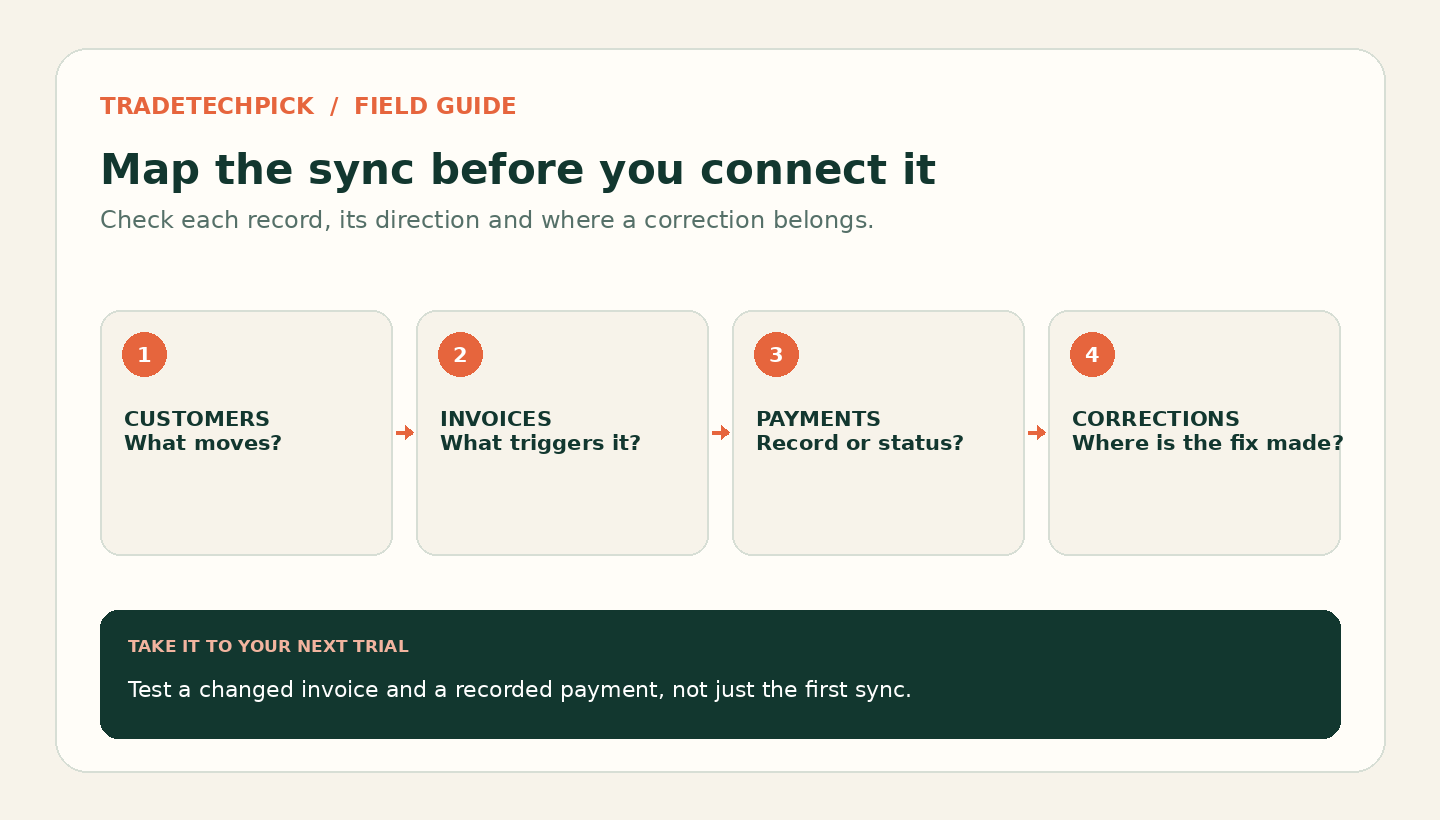
The useful buying question is not simply whether software connects to QuickBooks. It is which records move, what triggers the transfer, and where corrections belong.
One-way and two-way are not enough
Treat customers, products, invoices, payments and deletions as separate workflows. An initial import from QuickBooks is not an ongoing return sync. A paid flag is not necessarily a payment record. Even when records travel both ways, that does not mean every field or correction does.
ServiceM8 illustrates the distinction: payments move both ways, but invoices created in QuickBooks Online do not come into ServiceM8.[1] Jobber's legacy integration can return an invoice's paid status without importing the payment itself.[2]
Write down the correction location for each record type rather than choosing one master system for everything.
What the seven platforms actually do
Jobber: check which integration you have
Jobber documents both new and legacy QuickBooks Online integrations, with different rules.[3], [2] Its feature page lists access on Connect plans and above and explicitly excludes QuickBooks Desktop syncing.[4]
The new integration sends clients, products and services, invoices and payments from Jobber to QuickBooks, automatically according to your settings; its optional initial import brings existing customers and products into Jobber.[3] Make subsequent operational edits in Jobber, but remember that deleting customer contact details there does not remove those fields in QuickBooks automatically.[3]
Legacy users need a different correction checklist: customers sync both ways, while invoices and payments are one-time outward transfers whose later edits must be made in both programs.[2] Do not apply advice for the new integration to an older connected account.
Housecall Pro: outward sync, with a useful payment exception
QuickBooks Online access requires Housecall Pro Essentials or MAX.[5] Invoices, payments, new customers and new Price Book items go from Housecall Pro to QuickBooks; estimates do not.[6]
Correct an invoice in Housecall Pro, then manually push it again when its line items, quantities, prices or descriptions change after the initial sync.[6] Deleted or cancelled invoices also need attention in QuickBooks because that action does not transfer automatically.[6]
If someone records a payment in QuickBooks first, use Pull Payment from QBO rather than creating another payment in Housecall Pro.[7] Its separate Add Local Payment option records a payment in Housecall Pro without sending it to QuickBooks, useful when the accounting entry already exists.[7]
ServiceM8: two-way for some records, not all
ServiceM8's US pricing page includes accounting integrations in every plan.[8] Its QuickBooks Online documentation is unusually specific: customers and materials stay linked after syncing, and changes in either system update the other; ServiceM8-created records first go across with an invoice.[1]
Approved invoices go to QuickBooks. Later ServiceM8 changes that affect the total cause invoice line items to re-sync, but QuickBooks-created invoices do not return.[1]
Payments flow both ways. Once a payment has reached QuickBooks, it cannot be deleted in ServiceM8; deleting it in QuickBooks removes it from ServiceM8.[1] QuickBooks also controls tax settings while integrated.[1] This is the clearest example here of why “always correct it in the field-service app” is bad advice.
Tradify: invoice numbering changes the payment workflow
Tradify's US Lite, Pro and Plus plans list QuickBooks Online sync.[9] Its setup guide permits imports of customers, suppliers and price-list items, but recommends maintaining them in Tradify so they update QuickBooks when invoices are sent.[10] Customer-name changes made only in QuickBooks can cause duplicate-name errors unless imported back into Tradify.[11]
Tradify describes its QuickBooks invoice workflow as one-way, with sent invoices becoming locked in Tradify.[12] To record payment in Tradify before export, its documented alternative is to use Tradify's numbering sequence, approve the invoice, send it to the customer, mark it paid, then manually send it to QuickBooks.[12]
Choose that workflow before invoicing starts. Do not borrow rules from Tradify's Xero connection: the QuickBooks instructions are the relevant evidence. QuickBooks Self-Employed is explicitly unusable with Tradify.[10]
GorillaDesk: customer import is not return sync
GorillaDesk labels its QuickBooks Online integration one-way, pushing customers, invoices and payments into QuickBooks.[13] Its pricing page places the feature on Pro, with Growth inheriting Pro features.[14]
The vendor offers assisted importing of existing QuickBooks customers, including contact details, addresses, notes and starting balances.[13] That migration service does not establish ongoing reverse syncing. Treat GorillaDesk as the originating operational record; the retrieved integration page does not establish whether every later invoice correction re-pushes automatically. Include a post-sync edit in your trial rather than assuming it does.
QuoteIQ: prefer the specific instructions over a broad claim
QuoteIQ includes QuickBooks Online integration on Pro, Elite and Max, not Essentials or Beginner, and explicitly excludes Desktop.[15] Its integration page lists outward transfers for invoices, payments, customers, products/services, sales tax and convenience fees.[15] The troubleshooting guide also identifies contacts, services, estimates and invoices as sync objects and says edits belong in QuoteIQ, not QuickBooks.[16]
There is a documentation conflict: an HVAC marketing page calls the connection two-way, while the troubleshooting guide explicitly describes one-way operation.[17], [16] For workflow planning, give the specific troubleshooting instructions more weight. If editing inside QuickBooks is essential to your business, require a demonstration of that change returning before buying.
ZenMaid: distinguish the roadmap from the existing workaround
ZenMaid's pricing page still labels its Pro QuickBooks integration coming soon, while listing Zapier integration under Pro Max.[18] Do not buy Pro assuming that roadmap item is already a native accounting connection.
There is a documented alternative: one Zap sends a newly created ZenMaid contact to QuickBooks Online using Find or Create Customer, and another turns a Stripe New Charge into a QuickBooks Sales Receipt.[19] This is a customer-and-sales-receipt workflow, not evidence of full invoice or payment-status syncing back into ZenMaid. Its instructions specifically warn about duplicate clients or receipts from overlapping workflows.[19]
QuickBooks Desktop needs a separate decision
Housecall Pro documents a Desktop connection that becomes one-way from Housecall Pro after setup.[20] Its requirements include US Desktop versions no older than three years, Windows 10 or later, and the QuickBooks Web Connector; third-party hosting must allow the integration.[21] The reviewed pricing material establishes Online eligibility, not a clear Desktop plan gate, so get Desktop entitlement confirmed separately.
If you skip the Desktop customer import, Housecall Pro says its display name must exactly match the existing QuickBooks customer name or a duplicate can be created.[20] That is a concrete pre-launch cleanup task, not merely a connection setting.
For ServiceM8, Tradify and GorillaDesk, the connections reviewed above are specifically QuickBooks Online. Those pages are not evidence of Desktop compatibility.[1], [10], [13]
Test corrections, not just the first invoice
If you are also replacing paper records or spreadsheets, use the migration checklist to plan the cleanup before connecting your full customer list:
- Agree a naming convention and identify existing customer matches.
- Confirm the purchased plan, QuickBooks edition and integration version.
- Send one representative invoice with tax and a partial payment.
- Change a line item after syncing and verify the result in both systems.
- Test a payment recorded first in QuickBooks, using the documented recovery route.
- Document how cancellations, refunds and duplicate records will be handled.
For billing timing and follow-up, see our field-service invoicing guide. Keep bank reconciliation separate from operational corrections, and have your bookkeeper approve the checklist. A connection earns its place when your team knows what to do after a mistake, not merely when the first invoice arrives.
For the wider buying decision, see our field-service software guide and cost guide.
Sources
Official pages checked 7 October 2026.